Best Of

Re: The Bi-Monthly Environment Art Challenge | July - August (79)
Looks good for the short amount of time!
I think the main difference between the concept art and what you got so far is actually the colors. In the concept the white pops way more also because it has this nice red/ochery tint, especially in the water canal. The ocean gives this great dark blue contrast (I know you already said you're not happy with the water yet) and the cliffs in the bottom left (and middle island) are redish. I think what could help you a lot is some sort of warm light coming from the camera. The cliffs and left white wall are in the shade yes but they get alot of ambient light in the concept. Also your left white wall is prettty blue, especially at the top - a warm light from said direction could maybe help out in that regard as well.
Overall the far away island takes the focus in your render because it is rather bright and your white foreground and left cliff + wall don't pop as much as in the concept. I'd probably fix that first and postpone the foilage part till the end. Instead having the background blurry could help a lot. I'm not an expert with cameras but I think you know what I mean when I say having the focal point closer to the very foreground and keeping the image rather sharp until the middle cliffs/island between the boats and slowly have it blur out more and more until it reaches the distant island.
Edit: And don't be stingy about polys in the foreground! Those corners in the water canal send shivers down my spine haha.
 SimonKl
Re: The Bi-Monthly Environment Art Challenge | July - August (79)

Just started this week. Working on getting the composition right.
vladorales
Re: Show your hand painted stuff, pls!
Hey everyone. Love painting food so I made this !
Twitter here : https://twitter.com/DetectivePacha
https://sketchfab.com/models/e9ea5d3bbdf0498cbcafd6f50cce2c7b/#UNIQSKFBVANILLA
 TinyPacha
Glowing Sheet Ghost


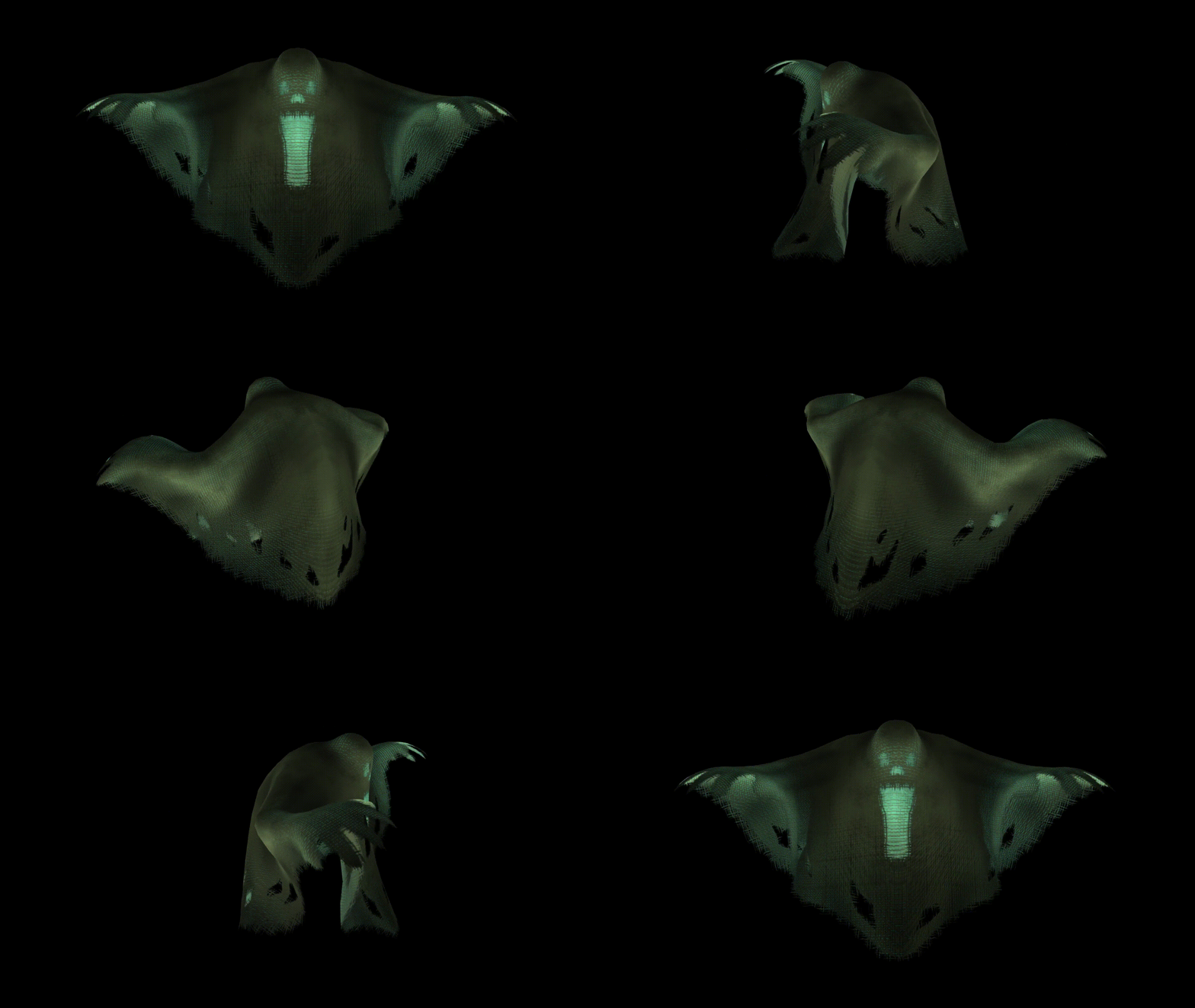



Hi my name is Nick, working on becoming a character modeler for video games. This is one of my characters for a simple haunted house game, made using Maya, Zbrush, and Affinity Photo. I would like to hear people's feedback on it.
C&C Please and Thank you!
Nicholas_H_Paz
Re: The Bi-Monthly Environment Art Challenge | July - August (79)
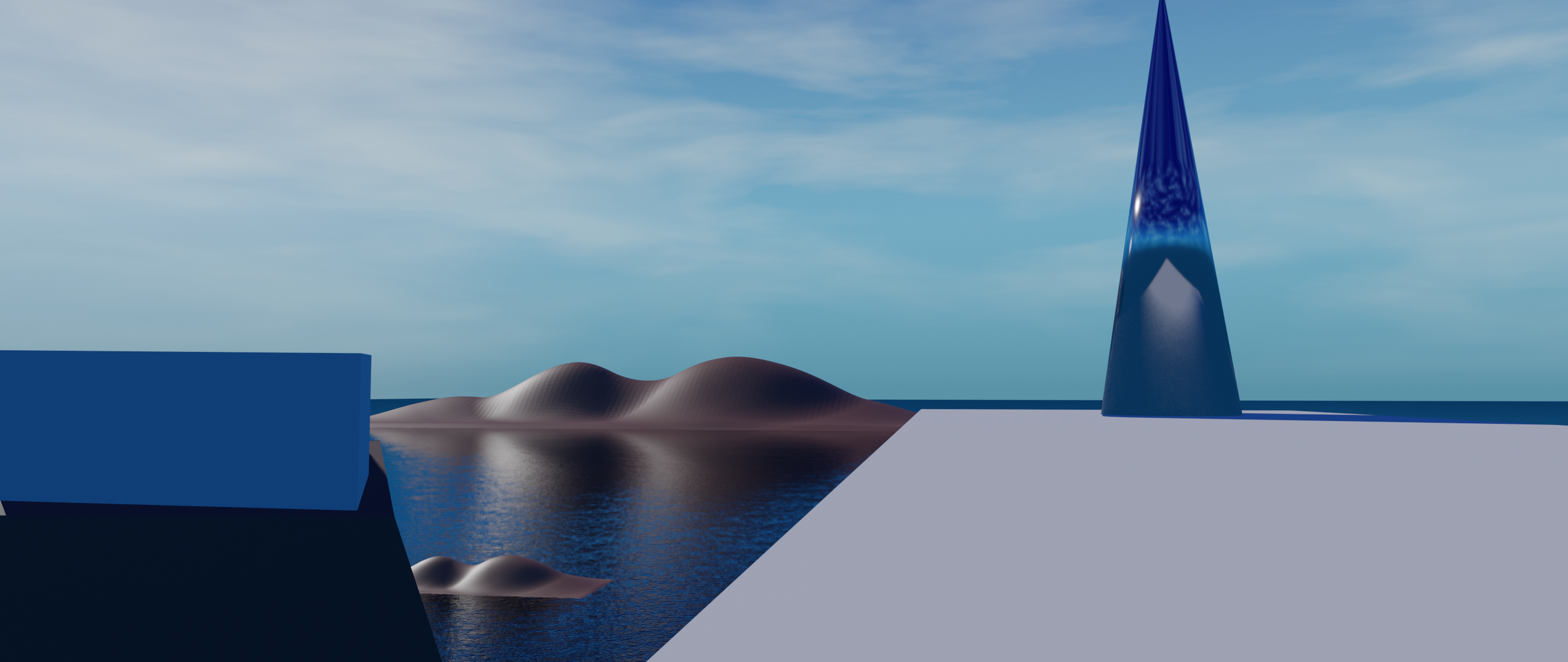
I've been wanting to take a crack at the Wind Harp scene since the beginning of the month---originally I was going to do it in a game engine, but I kept running into roadblocks (mostly hardware related) So I went ahead and did it in Blender again. Since my last two attempts at the Bi-Monthly environment challenge took way too long for me to finish, I decided I was going to try to finish the scene (or at least get it into a more-or-less presentable state) in one week.
Day 1:
Day 3:

Day 7:

Working fast like this and not hyper-scrutinizing everything was a lot of fun! The biggest issue I had was the water, and I'm still not very happy with how it looks. I also had trouble with lighting in Eevee, and then with volumetric fog in Cycles.
When I pick this up again in a few weeks, the next steps I can think of are: Finish the material for the harp object, replace the skybox/clouds, completely re-do the cliffside in the bottom left corner to better match the concept art, Improve the material for the white platforms (trim sheet maybe?), add foliage to the larger island, and add the boats and birds to the scene, and maybe the fruit as well.
 jgarrison
Re: Sketchbook: Frank Polygon
Subdivision sketch: soft hard surface.
This write-up is a brief look at using basic modeling operations to create a base mesh for stiffer types of soft goods. Complex folds and detailed wrinkles can be added to the base mesh using textile specific sculpting and simulation tools but the tradeoff is these processes tend to require a fairly dense mesh.
Simple fabric details, often found on smaller, less complex parts of some hard surface models, can also be added to the base mesh by using some creative subdivision modeling techniques. The details may be a bit softer with this method but the simplified mesh tends to use a lot less geometry and the surface can still be detailed later with fabric specific tools.
Modeling fabric products with a subdivision only approach does have some significant limitations but can still be an efficient way to create simpler shapes. Certain types of stiff fabrics like foam, leather, plastic, etc. tend to be used for more utilitarian or geometric designs and often have less pronounced fold details. Below is a preview of what can be achieved by making some quick changes to the topology of a simple base mesh.
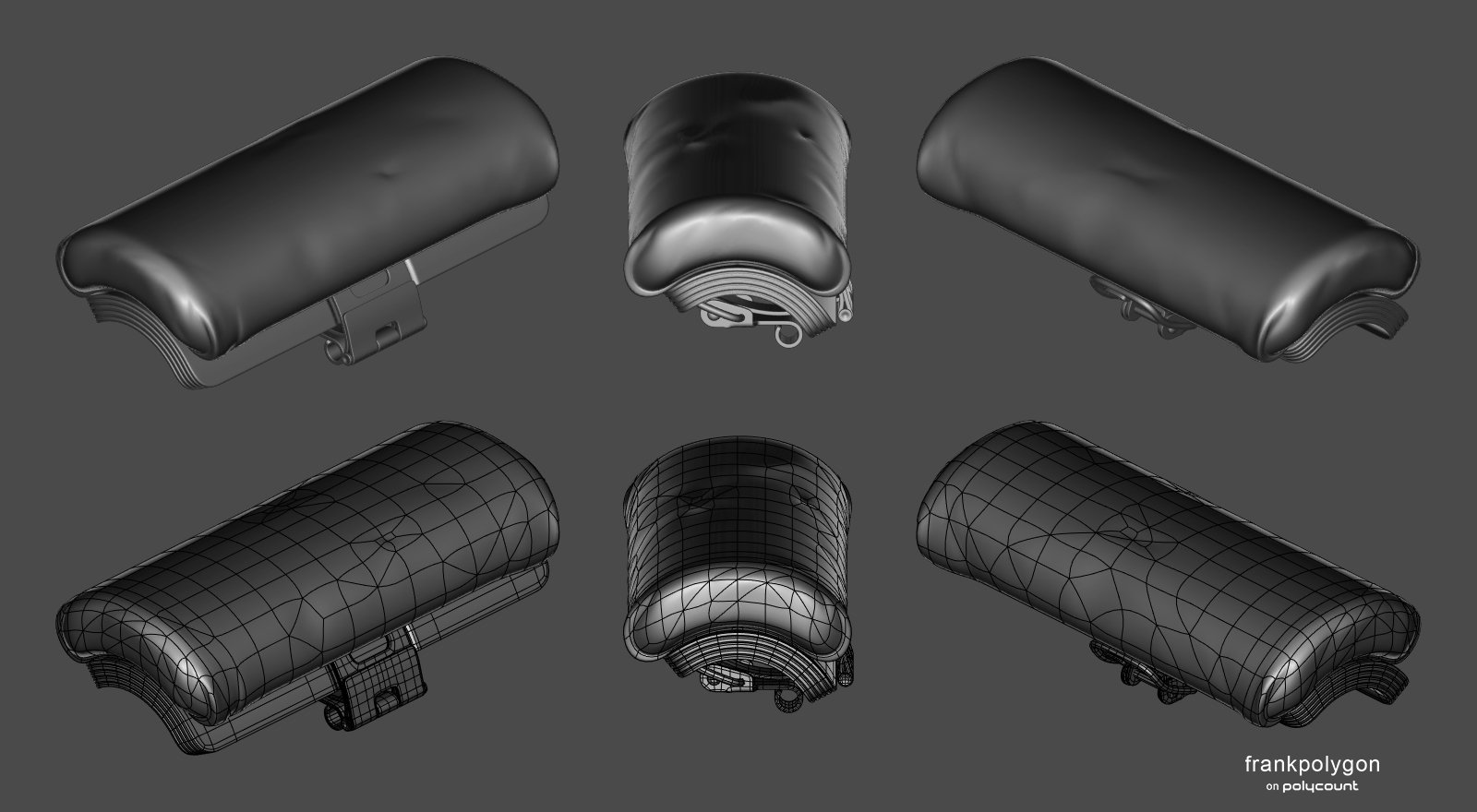
Starting with hard surface shapes, that are already well defined, will help establish a sense of scale and proportion for the fabric parts that are attached to the rest of the model. The underlying hard surface components can be created using basic modeling operations like solidify, bevel, loop cut, etc.

Blocking out the fabric parts is fairly straightforward. Start by establishing the basic topology flow around the shape's profile. Extrude and add loop cuts to create a relatively consistent quad grid. Enable subdivision preview and adjust individual edge segments to form the basic shapes along the surface of the mesh. Create additional geometry to support complex surface features by using inset or loop cut operations and continue adjusting the shapes to match the references.
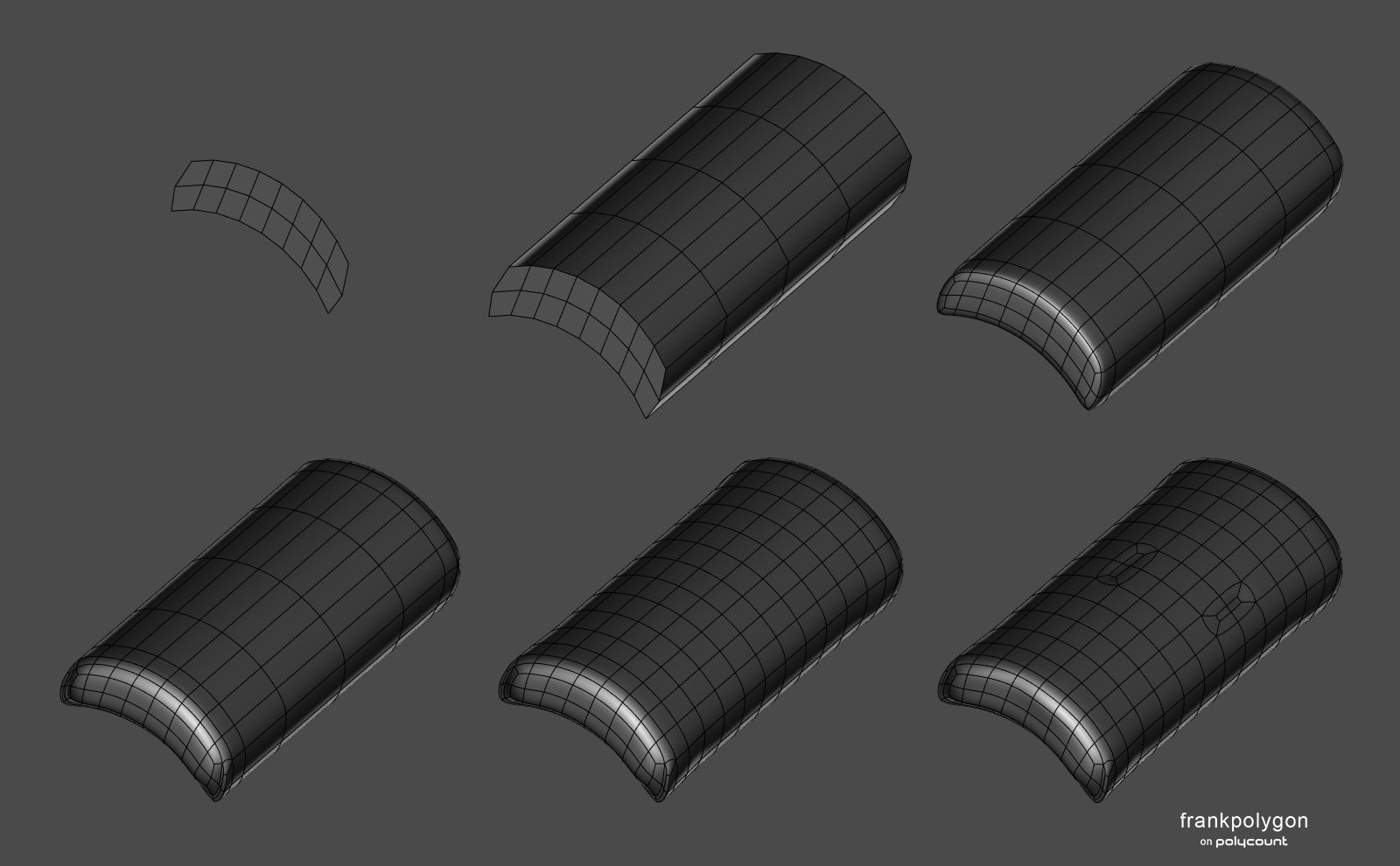
For softer fabrics, the quad grid mesh produced during the block out can be used as a base for sculpting or simulating fine details.

For stiffer fabrics, it's possible to create minor creases and ripples by triangulating sections of the mesh then randomly selecting individual edges and moving them into or away from the the surrounding surface. Dissolving individual vertices or edges and redirecting adjacent loops will also help produce subtle folds and wrinkles. Tools that are able to make random selections and move geometry relative to the surface normals can make this a fairly quick process.

The example below shows the final base mesh and subdivision previews. A few more details have been added by triangulating other sections and moving some of the new edges away from the existing surface. While it is possible to continue adding details by sculpting in high frequency details like micro folds, pores, weaves, patterns, etc. adding those types of micro details with texture overlays tends to be a bit more flexible. For this type of heavy fabric, the unsubdivided base mesh can also be used as the low poly model. Which can help save a bit of extra time.

Recap:
Applications like Blender, Marvelous Designer, ZBrush, Etc. provide a variety of different workflow options for modeling fabric parts. Deciding which approach should be used for a project really just depends on the complexity of the components and size of the surface details. While a subdivision only approach can be a quick way to model stiffer types of fabric, blocking out the basic shapes of soft goods can still be useful when using a sculpting or simulation workflow. It can be helpful to avoid adding unnecessary complexity to both the model and modeling process but it's also important to evaluate how the model will be used and chose a workflow that can be used to efficiently create accurate shapes.
FrankPolygon


Re: Zbrush - Invisible subtools
It has to do with how Zbrush is set up as a painting program, similar to MSPaint or Photoshop. Like any other pixel-based painting program, you select a tool from the Tool Palette (such as a paintbrush, line tool, etc... ), adjust its draw settings and color values, and then paint the tool across the document/canvas to alter the RGB values of its pixels.
In Zbrush's case:
- • It's pixels also contains two extra values beyond RGB, one for Material and another for Z-Depth.
- • It lets you use 3d models as tools since it can sample all sorts of color/depth data from them
- • It gives you a chance to edit the previous stroke before actually placing it onto the document's pixels. In the case of drawing a 3d model onto the document, it lets you go beyond just tweaking the size and position by letting you edit the model data itself. When edit mode is on, the draw settings apply to the brush. When edit mode is off, the draw settings apply to the tool itself as it appears on the document.
Most people just use Zbrush for sculpting, and so they primarily just edit the tool and then save the tool, never really giving the document any thought. But the core of Zbrush is still a painting program (hence its name), and is expecting you to paint on the document at the end of the day. What it shows you at all times is essentially a preview of what the 3D Tool you've drawn onto the document would look like if it were to be applied to the document. So if you draw a 3d Tool out onto it without any depth or material information enabled in the drawing, it's not going to show you that data. If the tool had any RGB color information then you might see that still displayed (albeit flat), but otherwise you're not going to see any sort of 3d surface unless the drawing of it has enabled MRGB and Z-Depth.
So that is why the solution is to drop out of edit mode and change the Material/Depth settings before the drawing is actually applied to the document's pixels (or if you accidentally have already applied them, then you can just clear the document and redraw the tool with its new settings).
And make sure that when you do draw a 3d tool onto the document, the MRGB/Z strengths are set to 100% strength otherwise some other oddities can occur when you try to edit that drawing (for example, if the z strength isn't at 100%, the model will appear flatter and you won't be able to edit its vertices)
 cryrid
Re: Can't hide seams
Upload your files, otherwise people will only be able to make guess.
My own guesses : you likely put some useless hard edges at the border of all UVs even though there is no need for them ; and then somehow lost the hard edge information along the way. Or, somehow used a baker that split rays at hard edges, which would naturally produces a broken surface rendition. Or, some color depth issue. But again these are just guesses based on ... not much.
Please make the effort to describe your issue with full sentences as opposed to one-liners, and show/share as much as you can.
 pior
pior