Best Of
Re: BRAWL2 [Character] R&M, iam717
Nice! Very curious to see where you land with the execution/style on this 
 Fabi_G
1 ·


Re: The BRAWL² Tournament Challenge!
I'm a little confused by the brief. Is it a requirement that the piece is based on existing work?
 Paxwort
1 ·
Re: Building a GPU powered painting program.
I was just reminded of very early versions of corel painter (around v4) in which you could attach basically any tool setting to any input - eg. stylus tilt could control color and size while pressure controlled opacity and rotation (or whatever), all configurable on the fly etc.
it was a very long time ago so rose tinted glasses apply but my heart has yearned for that level of brush control ever since
(possible hyperbole)
it was a very long time ago so rose tinted glasses apply but my heart has yearned for that level of brush control ever since
(possible hyperbole)
poopipe
2 ·
Re: Really really need feedback on my character

Posting this as a ref/ what I have in mind, obviously mine is not going to even be close but I really want to understand how to get to such insane level
pipapopapa
1 ·
Re: Halloween scene on Unity
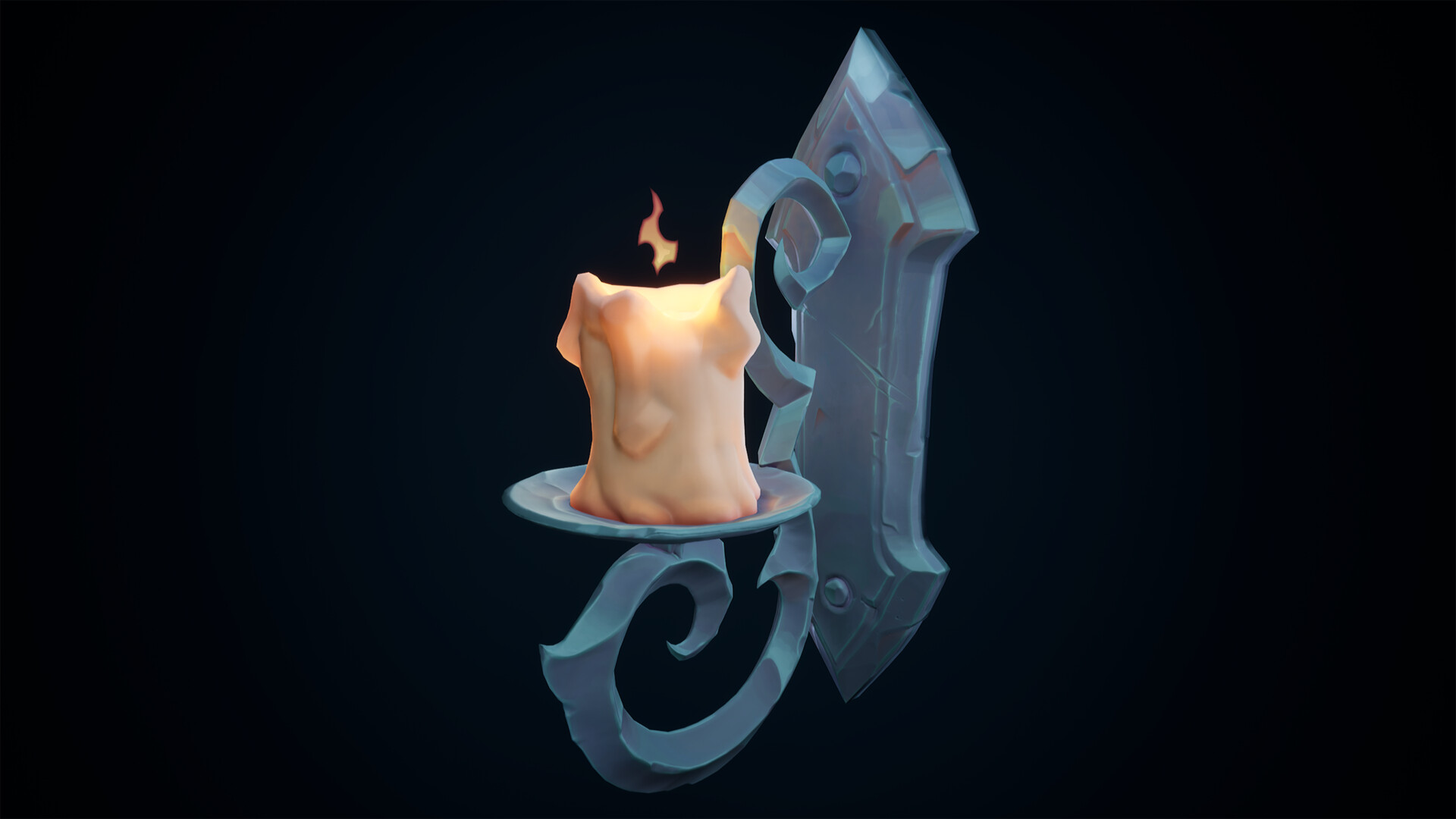
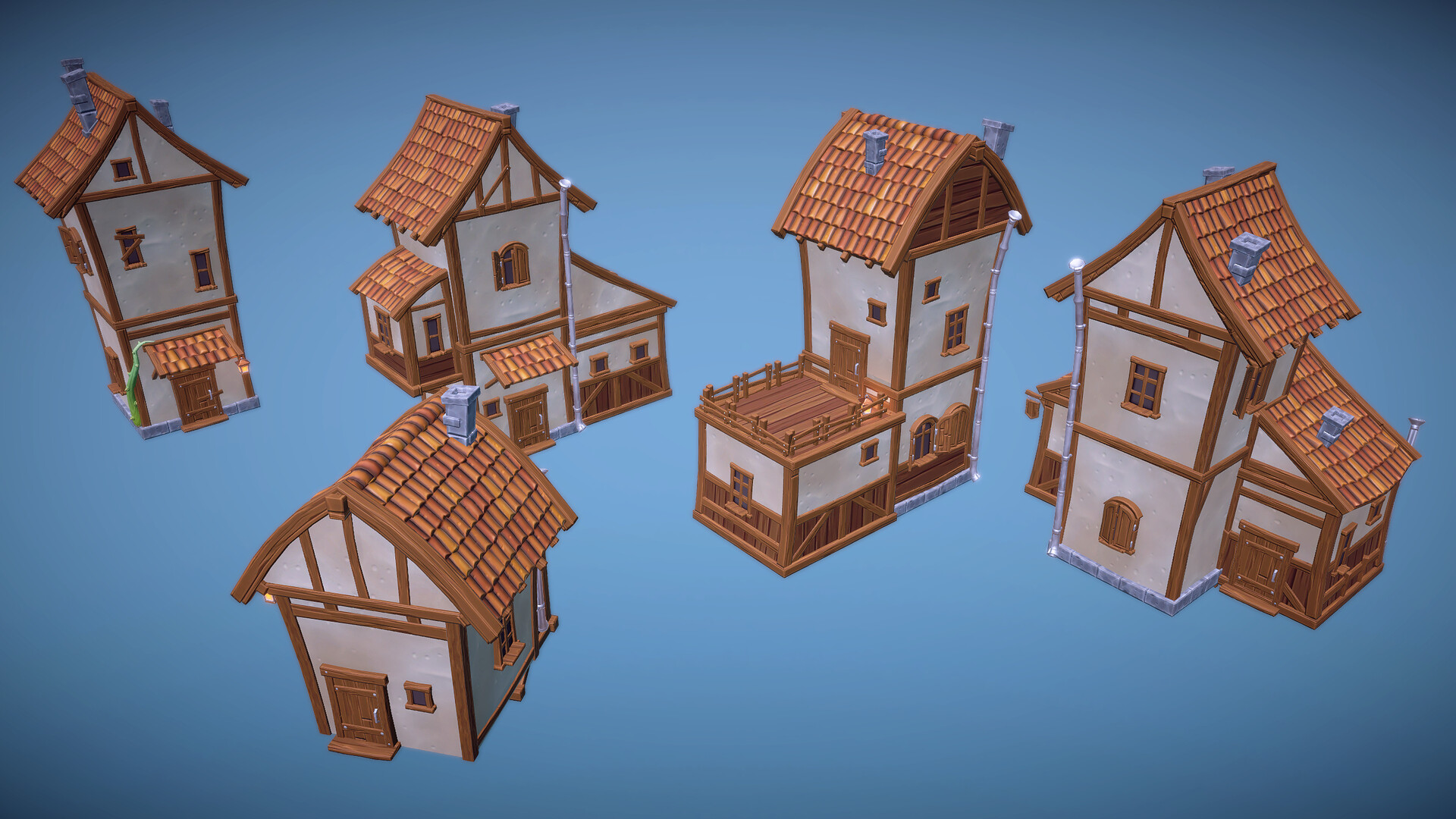
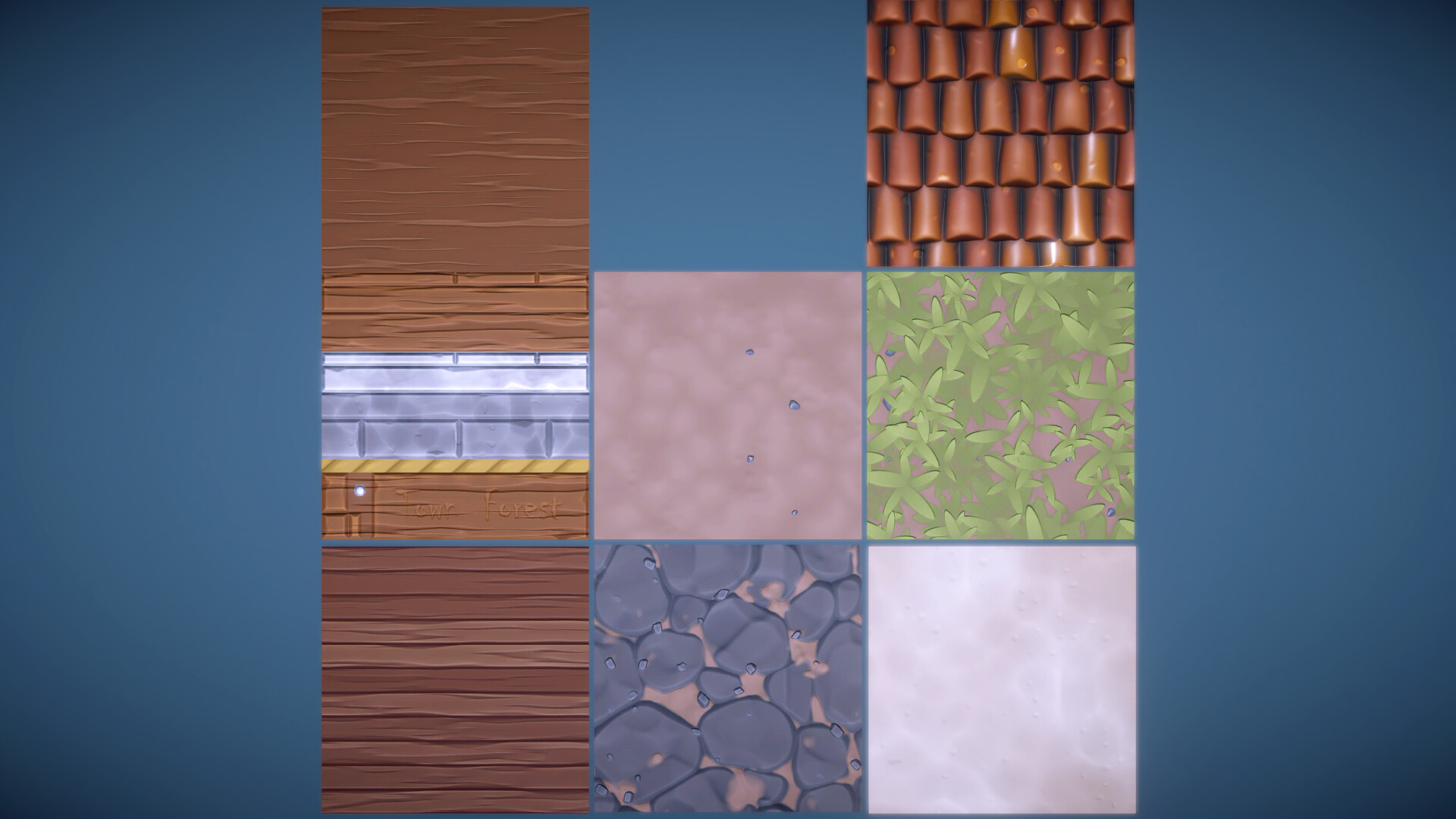
I happy to say that I finally finished this scene! What started how small art challenge inspired by my Halloween wallpaper - became small 3D scene, which I'm planning to publish in Untiy store. The main gall was do not use any 3th party assets.
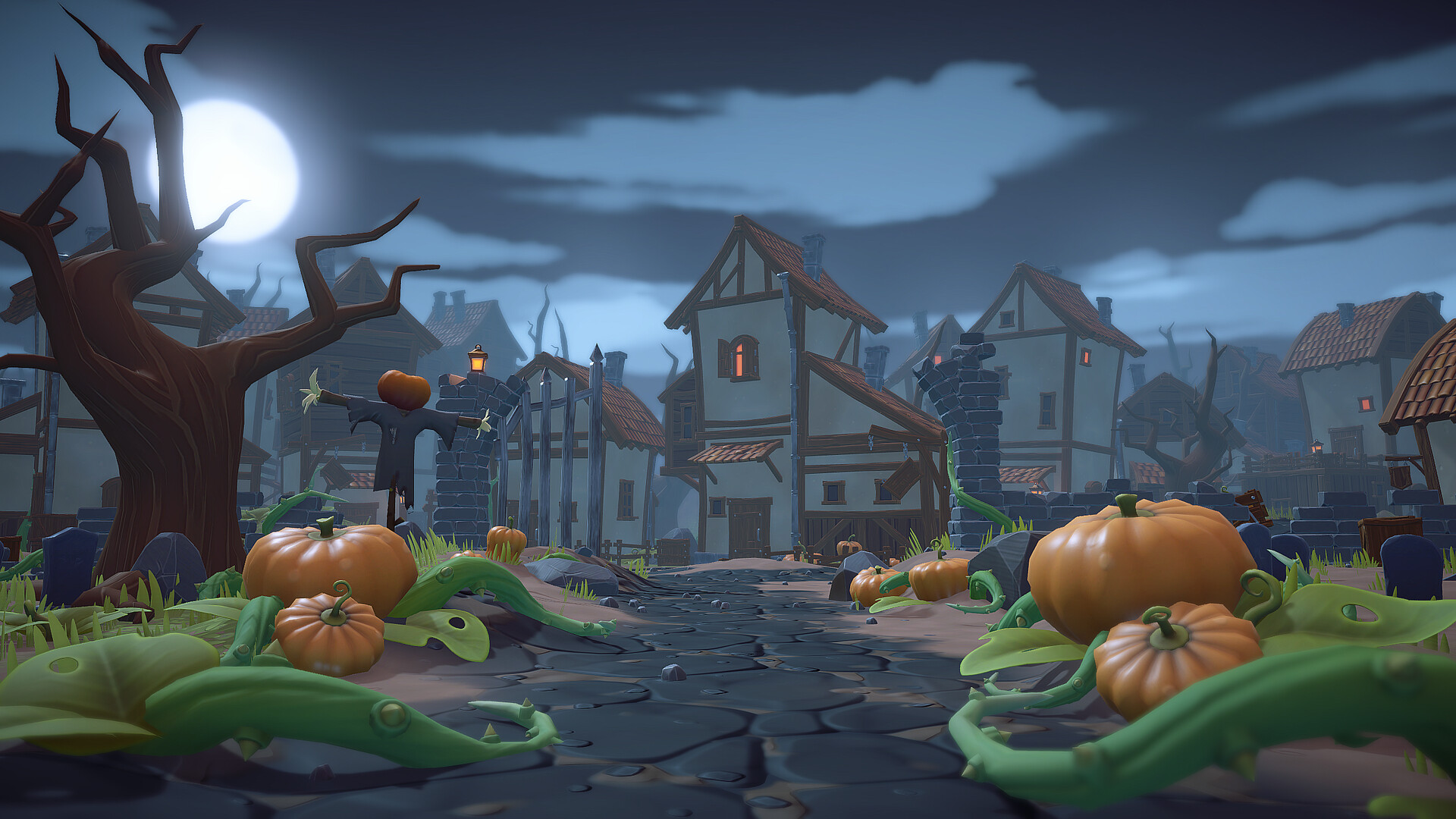
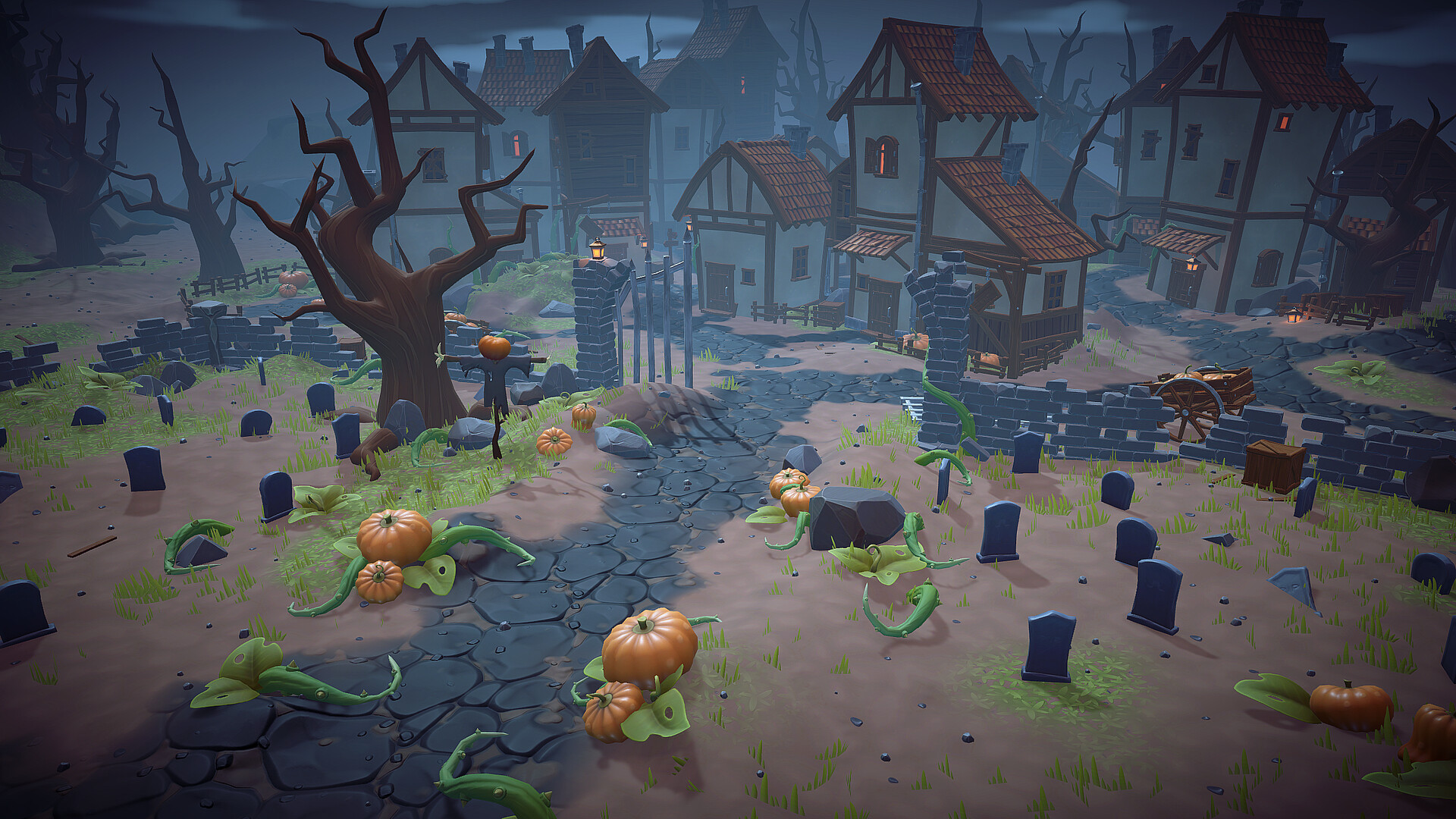
It's amazing how hard it is in life to find the perfect time for any project, and unless you start regularly devoting at least half an hour of your time to something, everything can be completed quite quickly. The main thing is not to wait, but to do!
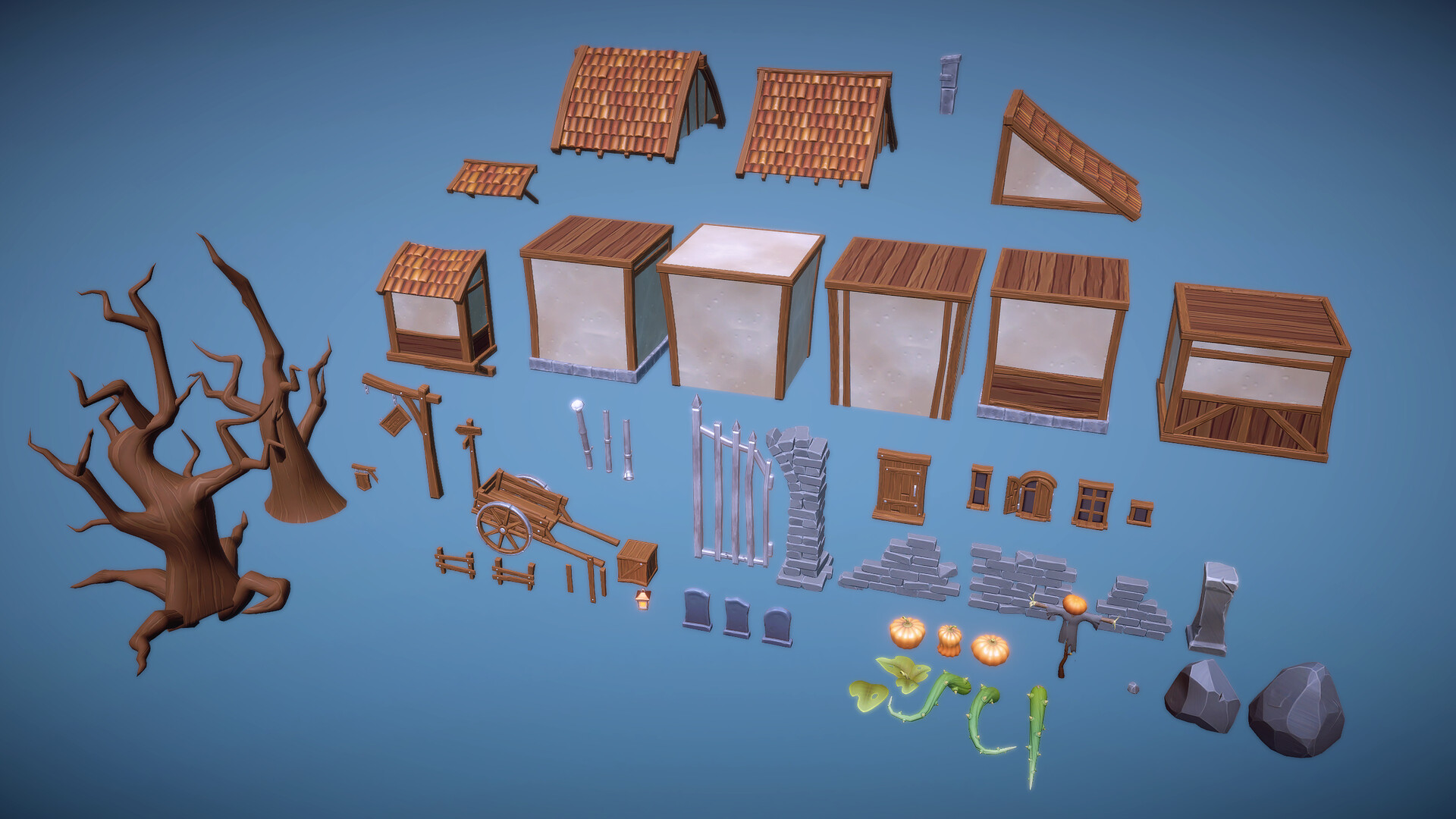
Subscribe and see few additional screenshots on artstation
Thanks for your time and don't put off creativity!
It's amazing how hard it is in life to find the perfect time for any project, and unless you start regularly devoting at least half an hour of your time to something, everything can be completed quite quickly. The main thing is not to wait, but to do!
Subscribe and see few additional screenshots on artstation
Thanks for your time and don't put off creativity!
 Gleb_Parshikov
2 ·
Re: How The F*#% Do I Model This? - Reply for help with specific shapes - (Post attempt before asking)
@jhonerick This type of pinching artifact is generally caused by excess smoothing stress generated where edges cross over the face of a curved surface to connect the corner vertex to the support loop. In this case the effect is exacerbated by the edges of the support loops themselves because they disrupt the segment spacing of the curve and are generating some unintended surface deformation before the smoothing is even applied.
While it is possible to brute force a solution by arbitrarily increasing the geometry density of the curve, it's also possible to simplify the mesh and solve each issue individually at a higher level. Keeping the shapes relatively simple and using the existing edges in the curve as part of the support loops for the intersecting shapes is generally considered best practice when working with subdivision and allowing the subdivision do a lot more of the smoothing work will help make things easier.
Below is an example of what this could look like: Start by blocking out the basic shapes until there's enough room between the segments of the curve to accommodate the intersecting shape, plus the width of the support loop for that same shape. Work on solving the basic topology flow paths around the shape and across the curve. Use at least one of the edges in the curve to act as an intermediate support loop across the flat interior surfaces of the intersecting shapes. Route the primary loop flow paths around the intersecting shape first, avoiding unintentional deformation of the curved surface, then add the final support loops to sharpen the edges of the shapes.

The basic topology flow can be routed directly around the shape intersection with manual loop placement
operations and the tighter support loops, used to define the sharp edges
of the shapes, can be generated with vertext group or edge weighted beveled
/ chamfer modifiers. Using the existing edges of the curve as support
and keeping the tighter edge loops within the existing segment spacing
will help reduce undesired pinching and surface deformation.

Here's what the final base mesh looks like before and after the edge sharpening support loops + subdivision are applied.

The same basic topology routing strategy works for most types of serrations. In this example there's no space between the edges of the serration and the resulting triangle on the curve is constrained by the adjacent loops and doesn't cause any noticeable smoothing artifacts so it's acceptable.

A lot of A1's and similar variants have fairly shallow serration patterns and when dealing with details like this it's generally best to keep things as simple as possible. Let the subdivision do the smoothing. Here the same segment spacing from the previous example works with the shallower serrations.

Subdivision smoothing is an approximate process: so there's a trade off between mesh density, editability, and shape accuracy. The topology routing in this example does produce some very minor surface imperfections, however they're only visible at extreme glancing angles and when viewed up close.


Close up comparison between reflective high gloss material and soft highlight material with smooth roll off. Subtle surface quality issues like this aren't visible under all conditions but could be resolved using the same topology routing strategies and increased segment density along the curved surface.
With subdivision: whether or not all that extra effort makes sense depends entirely on the use case, view distance, and material reflectivity.
Depending on what the project goals are: it may also be worth looking at alternate poly modeling and re-meshing workflows (some of which are native to Blender) or maybe even a parametric modeling workflow like Fusion or Plasticity.

The example below shows how those subtle surface quality issues are largely unnoticeable at first person view distances.

Also, tighter support loops around the edges might look great up close but the
edge highlights around the shapes will tend to disappear when viewed
from further away. Over sharpened high poly models can also cause baking
issues. Which is why it's generally better to have slightly softer edge
highlights so the shapes remain readable at a distance or when baking
down from a high poly to a low poly.
Recap:
-Block out the shapes and solve the larger topology flow issues first.
-Use the existing geometry of the curve to support the transitions between intersecting shapes.
-Avoid over sharpening the high poly as this can make the shapes difficult to read and might cause baking issues.
Links to additional write ups that cover similar shapes and smoothing artifacts:
FrankPolygon
6 ·
Re: How The F*#% Do I Model This? - Reply for help with specific shapes - (Post attempt before asking)
@naman When modeling formed textile products it's often a lot easier to develop the basic shapes first then collapse the subdivision so there's enough starting geometry to place the seams, folds, darts, channels, tufts, etc. then use those edges as a starting point for modeling the rest of the details.
Here's an example of what this process could look like: Start by modeling the basic shape with subdivision then apply that modifier and connect the adjacent vertices to create new edges that match the channel pattern in the reference. Bevel / chamfer that set of edges to create the channel then shrink the inner edge loop down to give it some depth. Merge down the vertices in the top corners and adjust the rest of the shapes as necessary.

If the mesh needs to be all quads
then it's just some light clean up work to either merge down some of
the verts or add some edge loops. (For
items with more complex patterns it might be easier to use a shrink
wrapping or procedural / generative geometry modifier based approach to adding the details.)
Links to some other write-ups on subdivision modeling soft goods:
https://polycount.com/discussion/comment/2783158#Comment_2783158https://polycount.com/discussion/comment/2771257/#Comment_2771257
https://polycount.com/discussion/comment/2742955/#Comment_2742955
FrankPolygon
5 ·
Re: BRAWL2 [Vehicle] Bull Dust, sacboi [Tribute]
Nice, that beam there looks perfect for some post-apocalyptic figurehead :P
Fabi_G
1 ·