Home Unity

Does anyone know how to get custom made trees in Blender working correctly in Unity Terrain Tool?

SeanWink
polycounter lvl 8
Offline / Send Message
SeanWink polycounter lvl 8
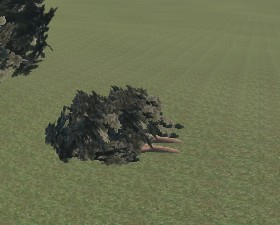
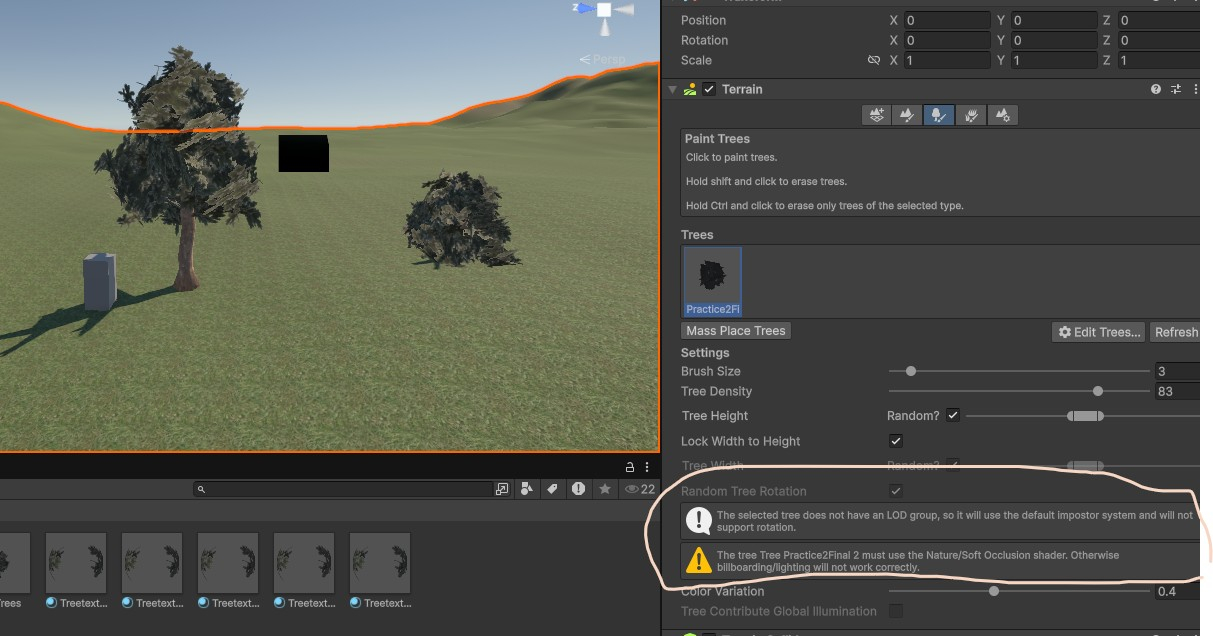
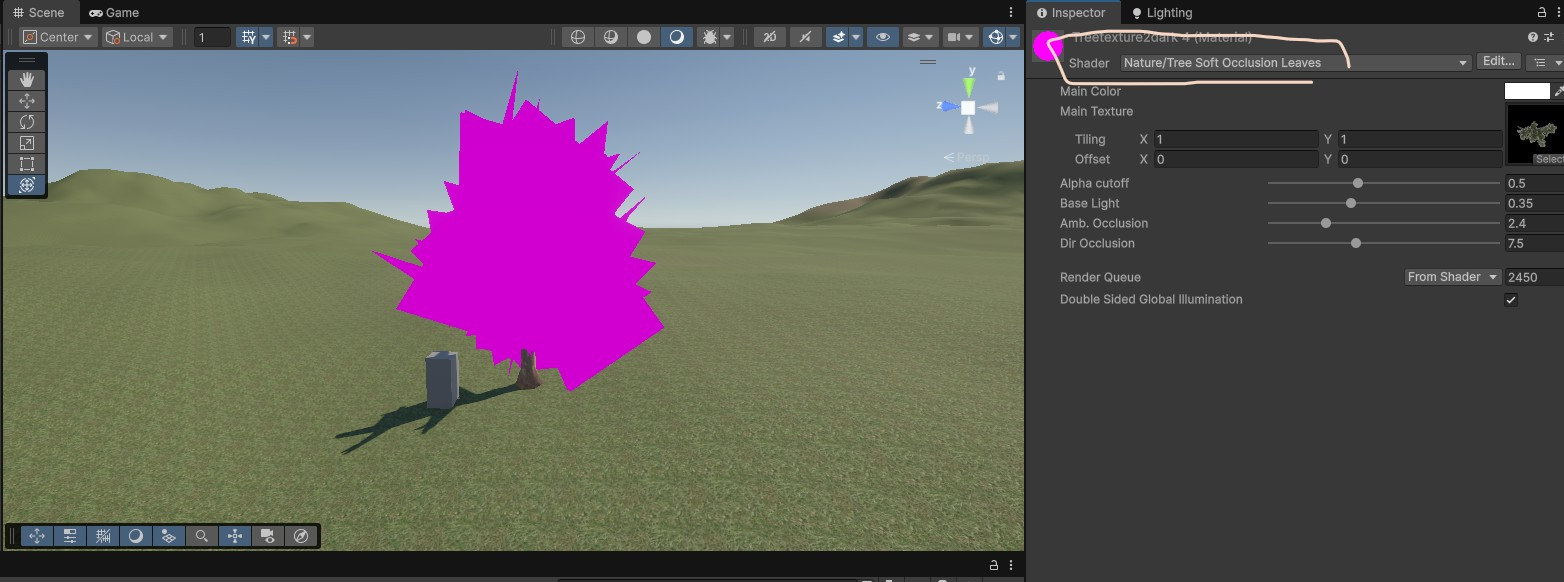
I have been having problems getting my trees I made in Blender working correctly in Unity. When I try to paint them they are lying sideways or half way under the terrain. Also I have error that says I "must use Nature/Soft Occlusion shader" but when I apply that shader on the material the material turns pink!
Replies

  • richkid
    Offline / Send Message
    richkid polycounter lvl 19
    For the sideways issue, Blender is Z up like max and when you import everything has that 90 degrees in the rotation. Try the checkbox in your model import settings to bake axis conversion. If that doesn't help, make sure your tree is aligned to Unity space in Blender before you export. I used to have to do this in Max pretty often

    for the shader, you just need to find an equivalent in whatever render pipeline you are using. So probably go Shader>URP>Nature
  • max1987martin
    I have been having problems getting my trees I made in Blender working correctly in Unity. When I try to paint them they are lying sideways or half way under the terrain. Also I have error that says I "must use Nature/Soft Occlusion shader" but when I apply that shader on the material the material turns pink!


    Hello, @seanwink

    You’re actually hitting 3 separate problems at once, and they all come from how Unity’s Terrain system expects trees to be set up.
    See  below details

    1. Tree sideways
    In Blender:
    Ctrl + A → Apply Rotation & Scale
    Rotate X = -90°
    OR fix in Unity using a parent prefab

    2. Tree half underground
    Set tree base at (0,0,0) in Blender
    Pivot must be at the bottom

    3. Pink shader + error
    Pink = shader broken
    If using URP/HDRP →
    Use Lit shader (ignore Soft Occlusion warning)
    If using Built-in →
    Put model in "Ambient-Occlusion" folder
    Use Nature/Soft Occlusion shaders

    Simple rule

    ✔ Correct rotation
    ✔ Pivot at base
    ✔ Use compatible shader

    I hope it is helpful to you.


Sign In or Register to comment.