[UE5] Mesh Decal Overlapping Wrong Order. Help?

triangle
Hello, I am trying to use mesh decal for my models in Unreal, I have made a decal atlas like this:
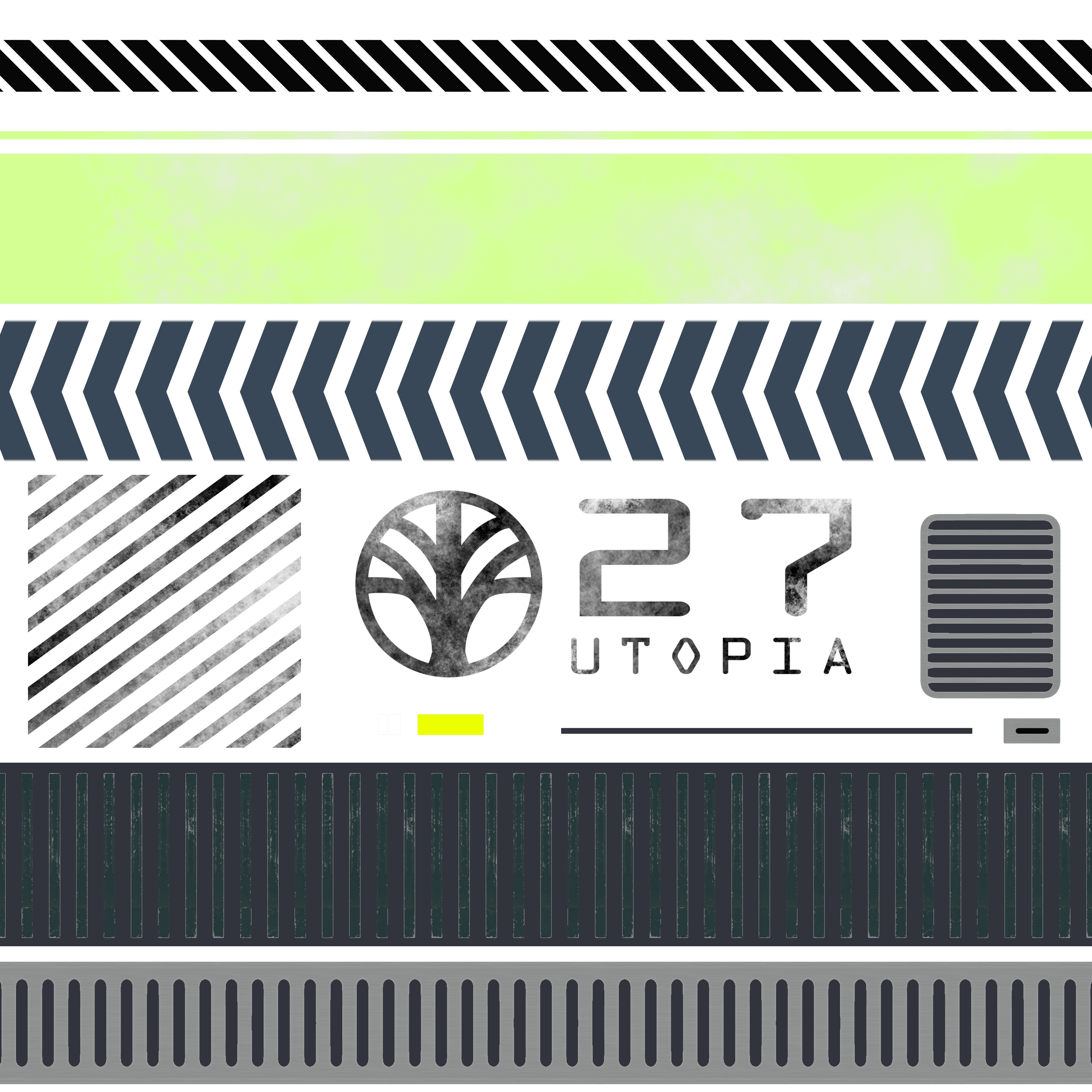
And my model like this (everything is combined into one mesh to import into Unreal):

As you can see, the smaller decal face that I am selecting is supposed to be on the top of every other mesh decal. I have also purposely moved it even further so I can exclude the possibility of Z-fighting.
But this is what happens in Unreal:

The black line isn't supposed to be on top of the smaller decal piece! I have no idea why this happens.
I have also tried to search for a solution and this is the closest I found: https://polycount.com/discussion/comment/2638950#Comment_2638950
But my mesh is already combined and only have one naming so I don't think it applies to my case.
Any help is appreciated!
And my model like this (everything is combined into one mesh to import into Unreal):
As you can see, the smaller decal face that I am selecting is supposed to be on the top of every other mesh decal. I have also purposely moved it even further so I can exclude the possibility of Z-fighting.
But this is what happens in Unreal:
The black line isn't supposed to be on top of the smaller decal piece! I have no idea why this happens.
I have also tried to search for a solution and this is the closest I found: https://polycount.com/discussion/comment/2638950#Comment_2638950
But my mesh is already combined and only have one naming so I don't think it applies to my case.
Any help is appreciated!
Replies
from memory I don't think you can set the priority/order on a per material basis so you're gonna want to split this into separate meshes or modify your decal sheet.
I'm not sure which option is best for your use case - pick whichever one is going to cause you the least ballache in the long run.
one thing to note is that you can just use a clipped (masked) material for a lot of decal work - particularly if you need hard edges - they have the advantage of sorting properly and are a lot cheaper to render than dbuffer decals.
dbuffer decals are designed to modify the underlying surface rather than override it so are good for staining, scratches, faded paint etc. but they're not ideally suited to putting bolts/clips/signs etc. onto things.