Search
-
Re: UV scramble
 If you'r working with 3ds max or maya it's because of smoothing groups you must put all your model in the same group of smoothing ctrl+A and clear all and then put them in 1 :smiley:
 -
Re: Custom tilable normal map has seams.
 I found the problem. My pattern had closed caps and with smoothed normals this problem was occuring. So be carefull with caps and non manifold geometry guys! Or keep you pattern with non smoothed normals.
 -
Re: Introduction to handplane for workshop artists
-
Re: Strange Normal map artifacts generated by Mudbox.
 Does your low poly mesh have one single smoothing group? xNormal takes smoothing groups into account. That may be why your normal map is coming out faceted.
 -
Re: Xnormal: problem with baking normal map - extremely distorted maps
 Beyond the fact that retopo model and unwrap are very inefficient and troublemaking you forgot to make the shading smooth or make a set of smoothing groups matching UV seams . It's first to start from
 -
Re: Maya hard edges..cant make them soft edges
Could it be unmerged vertices or double faces or something like that? I usually check for such things by hitting 3 for a smooth preview and if it doesn't smooth as it should then that's a good indicator that something needs fixing... -
Re: Help for Beginners
 Hey Tom, welcome to the 3D world! I've never used blender before, but maybe look into smoothing edges/smoothing groups for your model? It'll make the hard edges not as prominent.
 -
Re: [WIP] 1930's apartment scene
 Feels like it needs more geo in the shape, the reflections dont go that smooth, IF its not used as a game prop maybe double the polycount jus to make it look bit more smooth?
 -
Re: My why bother i use clay instead sculpture thread that includes nudity?
You can use baby oil (preferably unscented) to thin/smooth out plasticene. I used to use it with a paintbrush to go over nearly completed pieces to get a smooth finish. -
Normal Map Artifacts

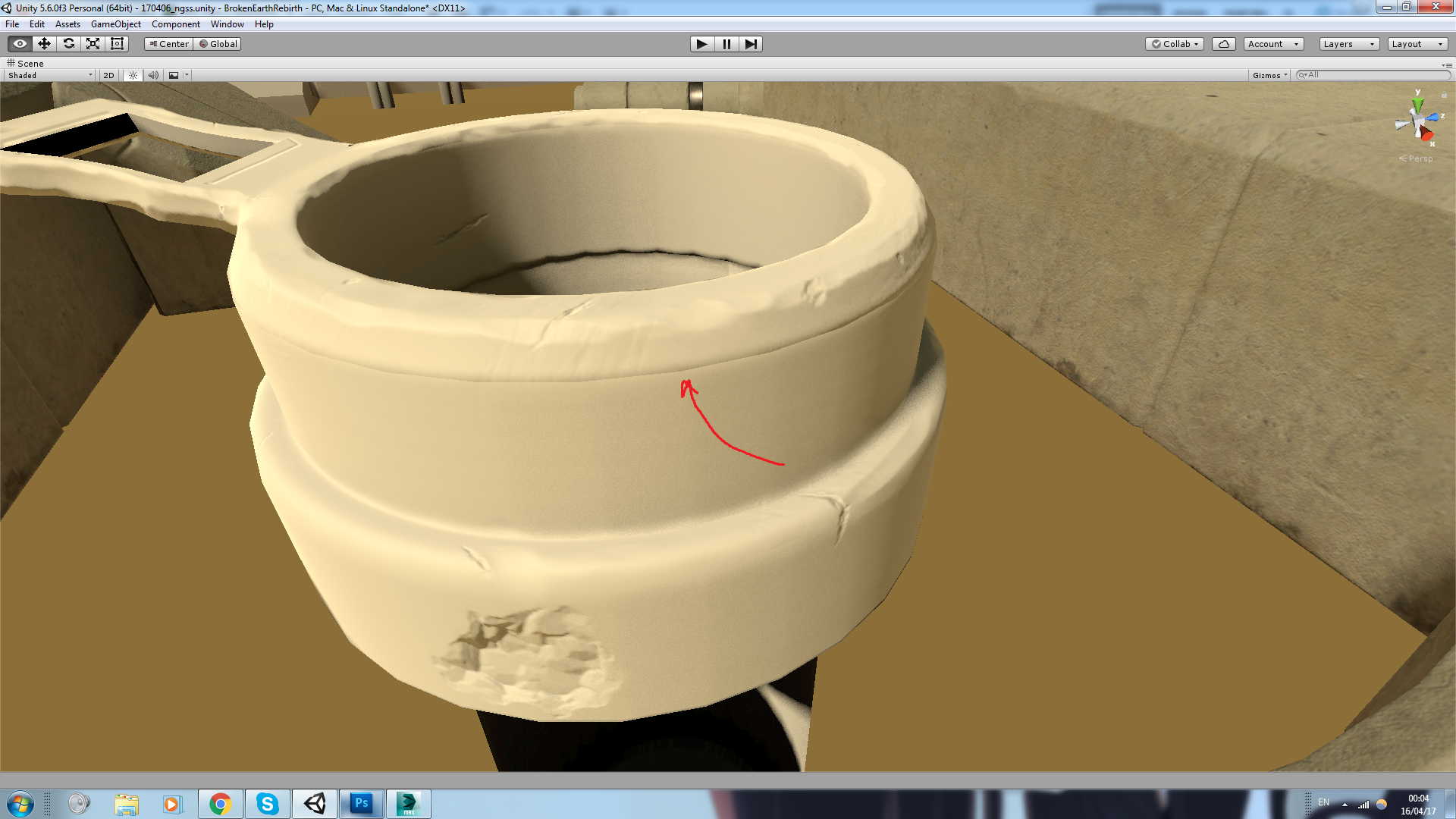 Hi folks, I have a normal map issue that I don't quite understand. It kinda looks like smoothing groups/uv islands problem, but that should not be the problem here, since every uv island is a separate smoothing group. Perhaps anyone has insight on this?

>17084 results