Don’t use gamma on normal maps

admin
I shared this on LinkedIn, might help some people here too.
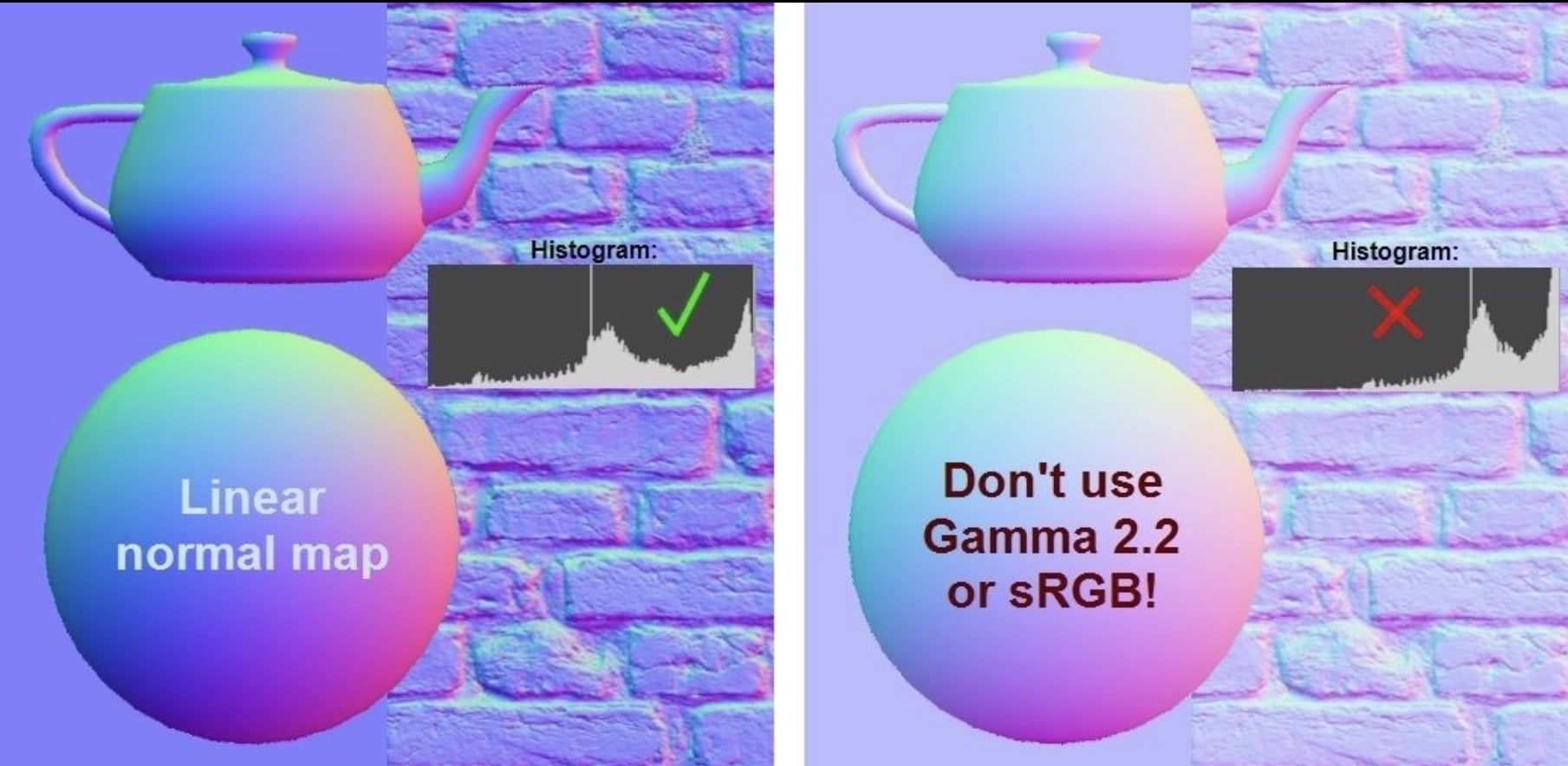
Don’t use Gamma on normal maps
Normal maps should be saved in linear color space, without color correction from Gamma or sRGB.
A lot of game PBR texture pipelines use sRGB color space, which is fundamentally very similar to Gamma 2.2. It’s so close, they’re pretty much interchangeable, from an artist’s standpoint.
It’s important to use sRGB on 24bit bitmaps for colored inputs like Diffuse, Emissive, Reflection and Refraction.
Color textures that could be captured with a camera should be stored using sRGB color space, while all the other maps (normal, rough, metal, occlusion) should be saved in linear color space.
Gamma 1.0 = Linear, same thing.
You can use a histogram to check if a map has been saved wrong. Histograms are cool! Look for a peak in the center, that’s what you want to see.
Replies
Here’s another tip:
Normalize your textures!
- This is a Substance 3D Asset which can be used with Adobe Substance Player and other applications which support SBSAR.
Why do we have to "normalize" our normal maps?
Here's an example that hopefully helps illustrate it!Notice how the lighting is messed up in the edited normal map. You can't see the windows anymore on the dome and donut, and even the flat background is reflecting the wrong colors.
This came up in my last post; I shared some Substance filters to normalize both normal and anisotropy maps. I showed an example with anisotropy, and how that can go wrong.
What about normal maps? Yeah, they can get pretty bad too!
Usually you shouldn't edit a normal map directly, instead you should use dedicated tools that build a normal map properly. But why does this matter?
Each pixel in a normal map uses the red, green, and blue channels to encode x, y, and z coordinates of a vector. These vectors are used by shaders to change lighting on your surfaces. It's pretty cool. But if the RGB data is altered by painting or compositing, then those vectors can get messed up.
So... it's best to normalize, after you're done editing.
LMK if you have any questions. It can be pretty weird to wrap your head around.
A great read if people want to dive deeper:
And a free tool to combine normal maps, by James @Farfarer O’Hare:
RNM Normal Map Combiner
"A little Python/OpenGL app for combining tangent space normal maps together. Uses the Reoriented Normal Map method described by Colin Barré-Brisebois and Stephen Hill."
I've read there is a packing method where blue channel is discarded, some other map stuffed in, then normal map is reconstructed in material.
So if I'm understanding this correctly, this method is rooted in the fact that the map only describes unit vectors, all of which are looking "up" (z-component always positive).
Testing this assumption with some nodes seems to give correct results. As far as I can tell at least...
Is it really how it works?